| Order | Buyer | Country | Method | Total | |||
|---|---|---|---|---|---|---|---|
| Loading... | |||||||
Label Queue
Export orders to your shipping provider and buy labels in bulk.
Last synced: --
Ready to Send
Ship these orders, then mark as sent on Cardmarket.
Last synced: --
| Order | Buyer | Country | Method | Tracking | |||
|---|---|---|---|---|---|---|---|
| Loading... | |||||||
Sent
Order history. Personal data has been cleared.
Last synced: --
| Order | Sent | Method | Total | |||
|---|---|---|---|---|---|---|
| Loading... | ||||||
Help
Welcome to CardSync!
You're about to cut out a lot of manual work from your Cardmarket shipping routine. Follow the steps below and you'll be up and running in minutes.
How to use CardSync
1
Install the browser extension
Install CardSync from the Chrome Web Store and pin it to your toolbar. CardSync works in any Chromium-based browser — Chrome, Brave, Edge, Dia, and Opera are all supported. Once installed, sign in with your CardSync account via the extension popup.
Install extension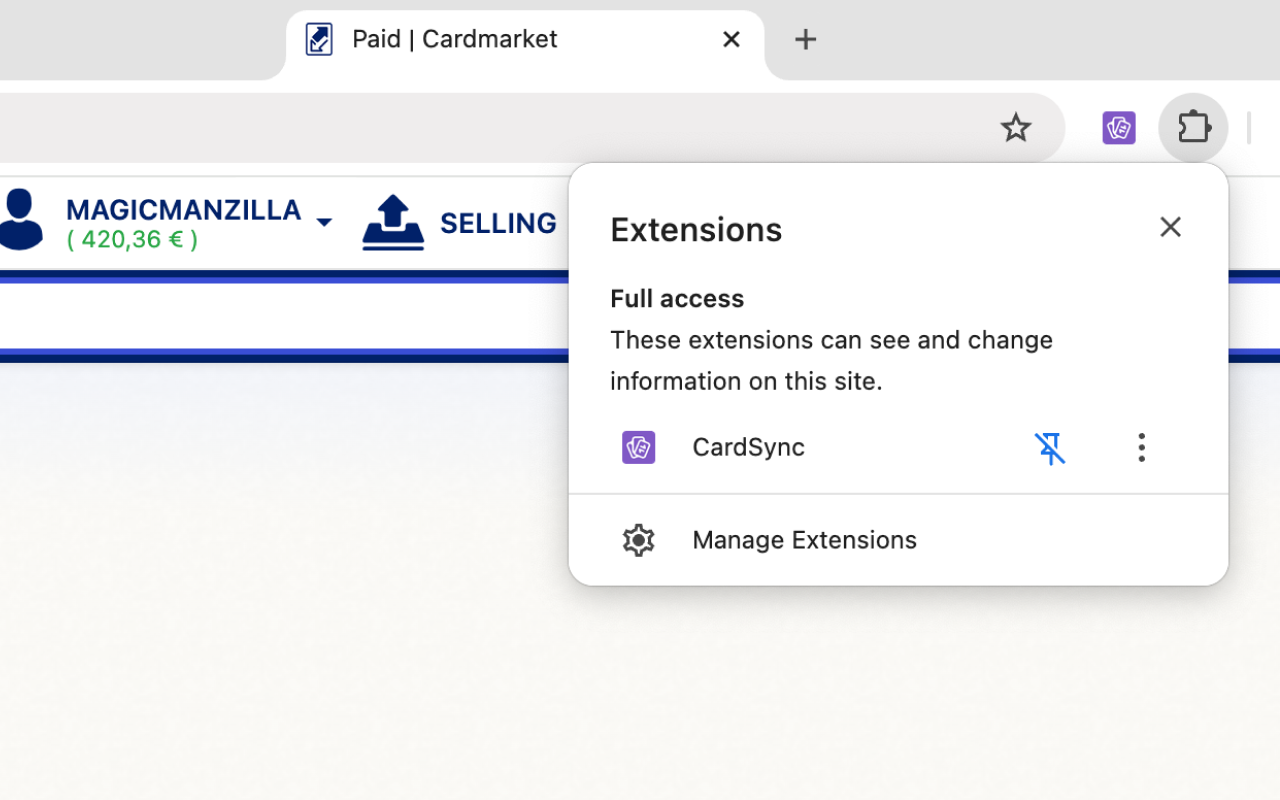
2
Sync orders from Cardmarket
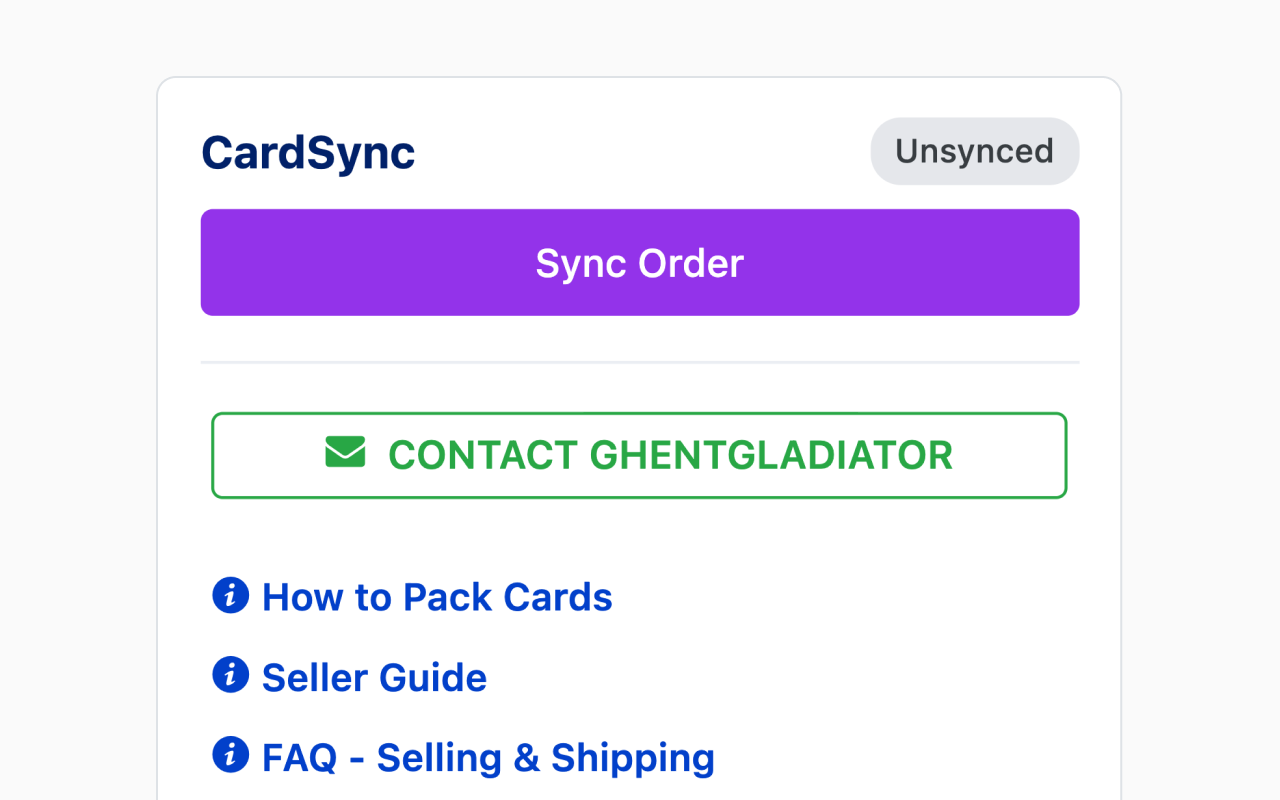
Open any paid, unsent order on Cardmarket. The CardSync widget appears automatically at the top of the page with a Sync button. Click it to add the order to your queue. CardSync will let you know if a particular order can't be synced and why.
3
Export orders to your shipping provider
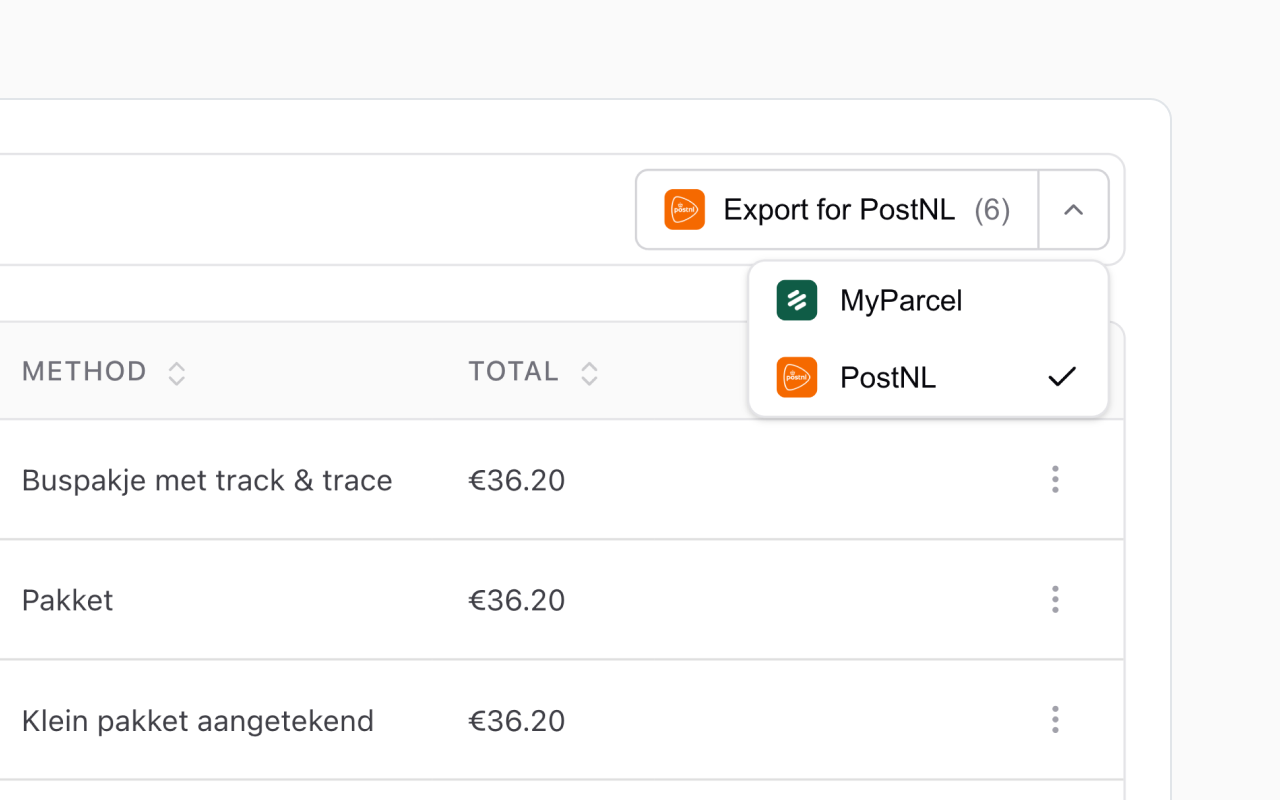
Synced orders appear in your Label Queue in the CardSync dashboard. Select the orders you want to ship and click Export to download a CSV for your shipping provider. Upload that CSV on your provider's website to buy all your labels at once — no manual address entry needed.
4
Sync tracking codes from your provider
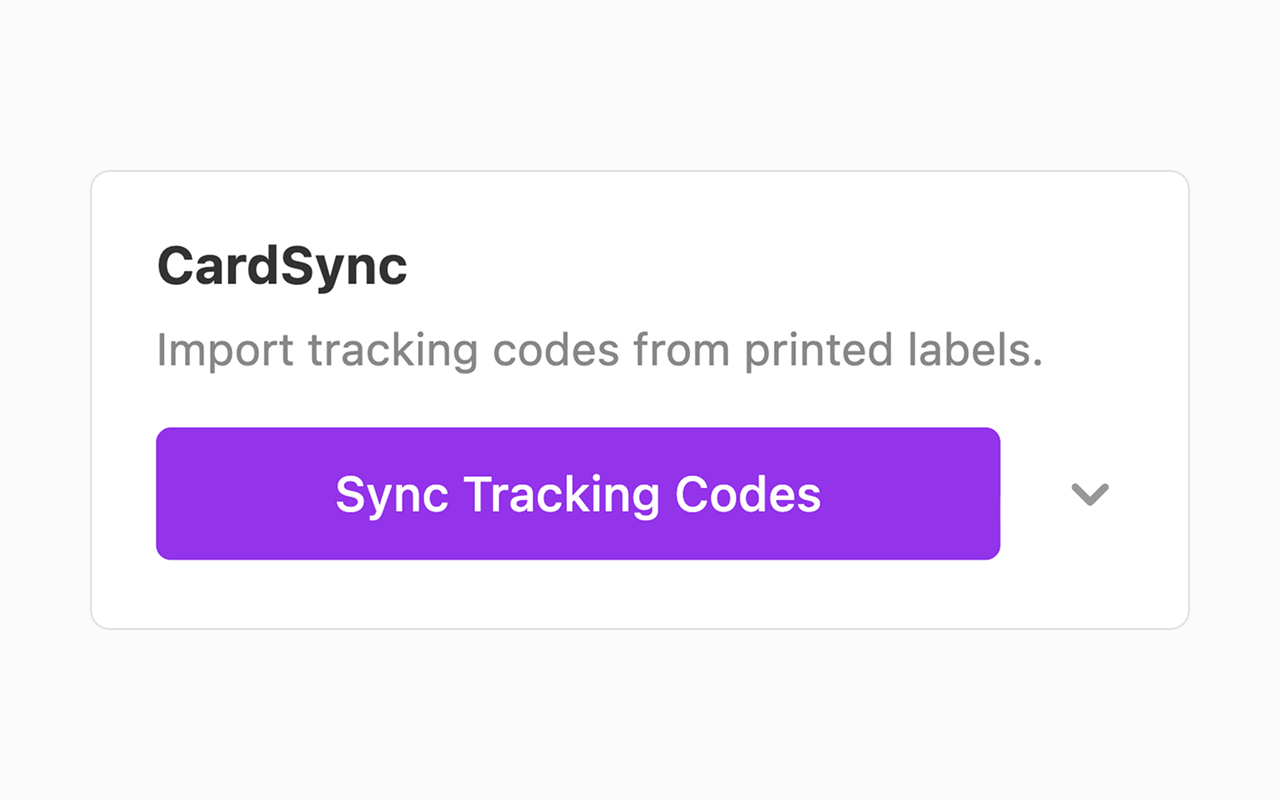
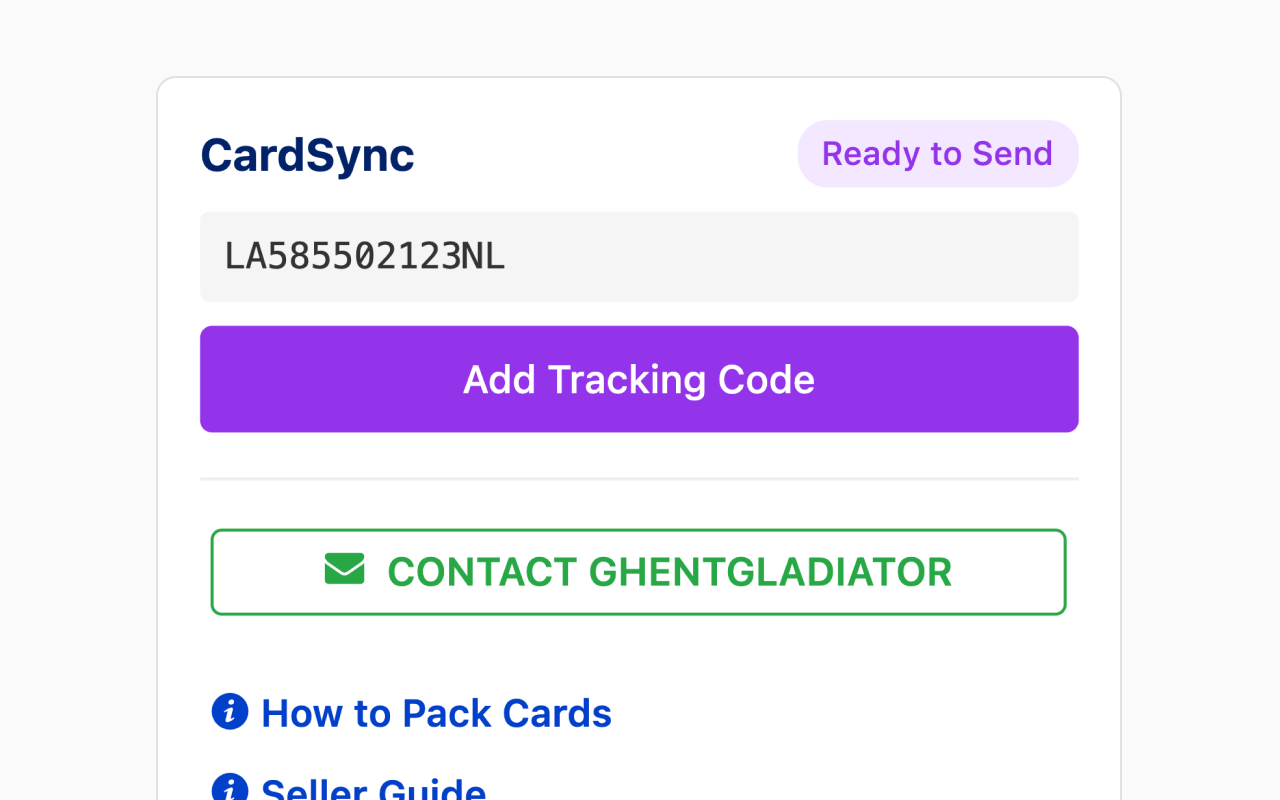
After creating your labels, open the shipments overview in your shipping provider's dashboard. The CardSync widget appears in the bottom right of the page — click Sync tracking codes and CardSync will map them to every order automatically. Your orders move to Ready to Send in the dashboard.
5
Tracking codes appear on Cardmarket automatically
Open any Cardmarket order and the tracking code will already be there — just click Add tracking code to confirm it. No copy-pasting needed. Then mark the order as sent as you normally would. CardSync detects this, moves the order to the Sent tab in the dashboard, and permanently removes all personal address data in line with GDPR.
Still need help?
Frequently asked questions
CardSync can only sync orders that are paid and unsent. Orders going to non-EU countries (US, UK, etc.) can't be synced as customs declarations aren't supported. Untracked letters are also not currently supported — CardSync is built to handle tracked shipping labels. Most sellers we've spoken to use physical stamps for letters, but if demand grows we may add support in the future. When you open an order in Cardmarket, CardSync will tell you exactly why it can't be synced.
Once your orders are in the Label Queue, click Export CSV in the dashboard. This generates a file containing all your queued orders, with every buyer's name, address, and shipment type already filled in — ready to import directly into your shipping provider's platform.
In your provider's import tool, upload the CSV and it will generate a label for every order at once. No copying addresses, no manual entry. Once your labels are created, open the shipments overview in your provider's dashboard — the CardSync widget will appear and let you sync all tracking codes back in one click.
All EU countries are supported for tracked parcel shipments. Non-EU destinations such as the US, UK, Canada, and Australia are not currently supported. If you need to ship outside the EU, you'll need to create that label manually in your shipping provider's dashboard.
Orders stay in the Label Queue until tracking codes have been imported from your shipping provider. After creating your labels, open the shipments overview in your provider's dashboard — the CardSync widget will appear and let you sync all tracking codes back in one click. Orders then move to Ready to Send automatically.
CardSync works in the background to match tracking codes with Cardmarket order IDs. Once you've synced tracking codes from your shipping provider, they appear directly on each order page in Cardmarket — no copying and pasting needed. All you need to do is click the button to mark the order as sent.
Yes. Shipping address data is stored only for as long as an order is in your queue. The moment you mark an order as sent, all personal data — name, address, and email — is permanently and irreversibly deleted from CardSync's database in line with GDPR. CardSync never shares your customers' data with third parties.
CardSync is a Chrome extension and works in any Chromium-based browser — including Google Chrome, Microsoft Edge, Brave, Arc, and Opera. Firefox is not currently supported.
No — never. CardSync only reads order data from Cardmarket; it never writes back to it. Syncing, deleting, or modifying orders in CardSync has absolutely no effect on your Cardmarket account or your buyers.
Yes, CardSync is completely free to use right now. If we introduce paid plans in the future, all existing users will be notified well in advance and any upgrade will be entirely opt-in — you'll never be charged without actively choosing to do so.
Yes. CardSync exports a CSV that you import into your shipping provider's platform to create labels. You'll need a business account with MyParcel or PostNL (for Dutch sellers) to do this. If you don't have one yet, you can sign up directly on their websites — it's free to create an account and you only pay per label you print.
Sorry about that! Please let us know by filling out the with as much detail as possible (which order, what error you see, which browser). We'll look into it and get back to you as soon as we can.
Still have a question?
Contact us
Have a question or found a bug? Send us a message below, or email us at info@cardsync.eu.
Drag & drop images here, or
PNG, JPG or GIF · max 5 MB each